How can we help you ?
Explore our comprehensive guides to activate your account, install the mobile app, and monitor your complaints seamlessly.
How to Activate Your Occupant Account
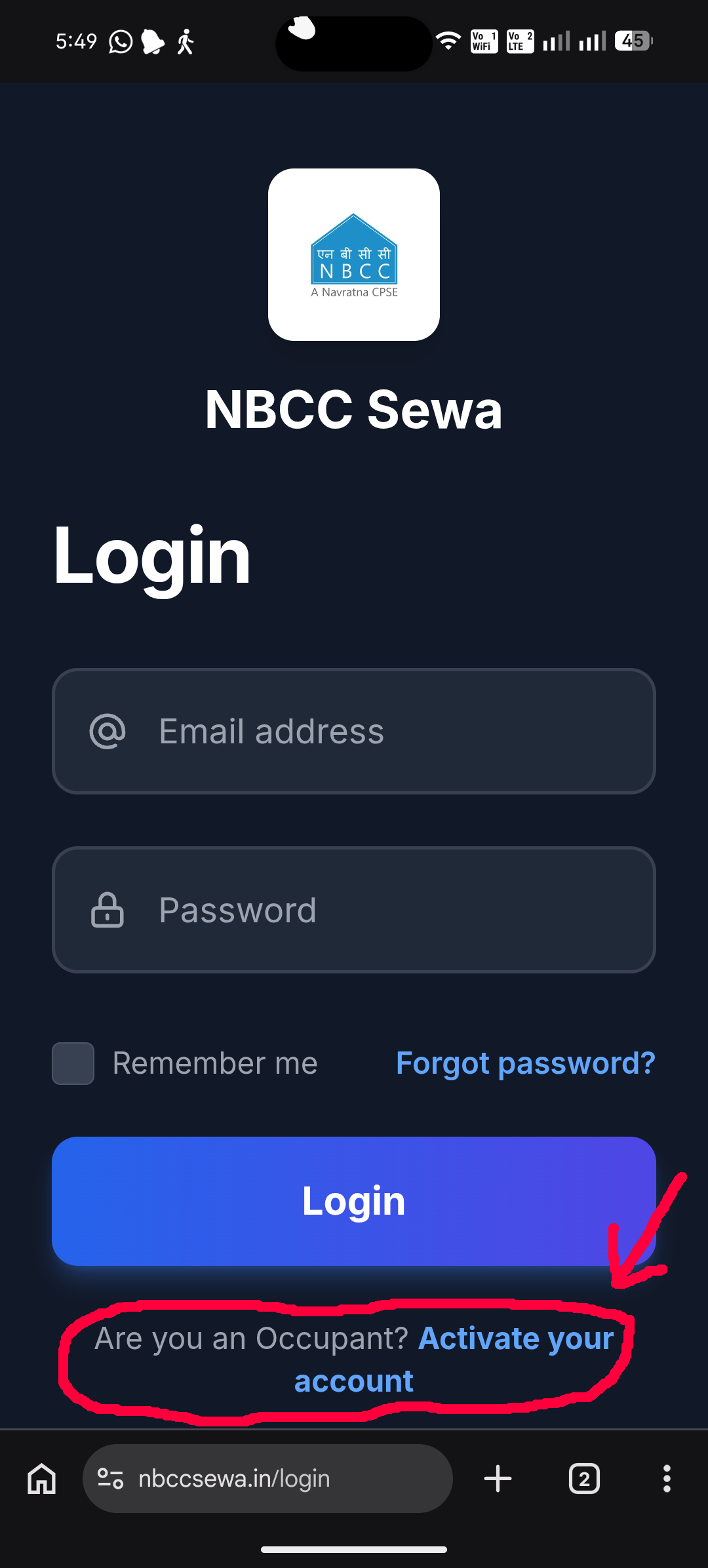
Click on the "Are you an Occupant? Activate your account" option below the login button.
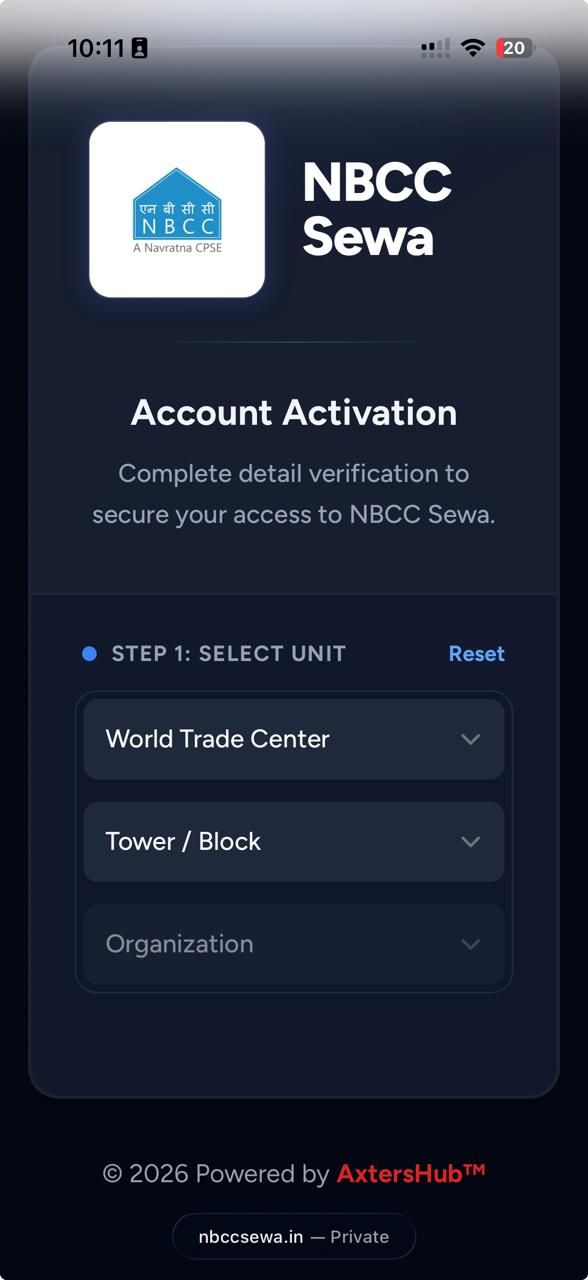
Fill in your Locality, Tower, and Flat number in the respected fields to select your unit.
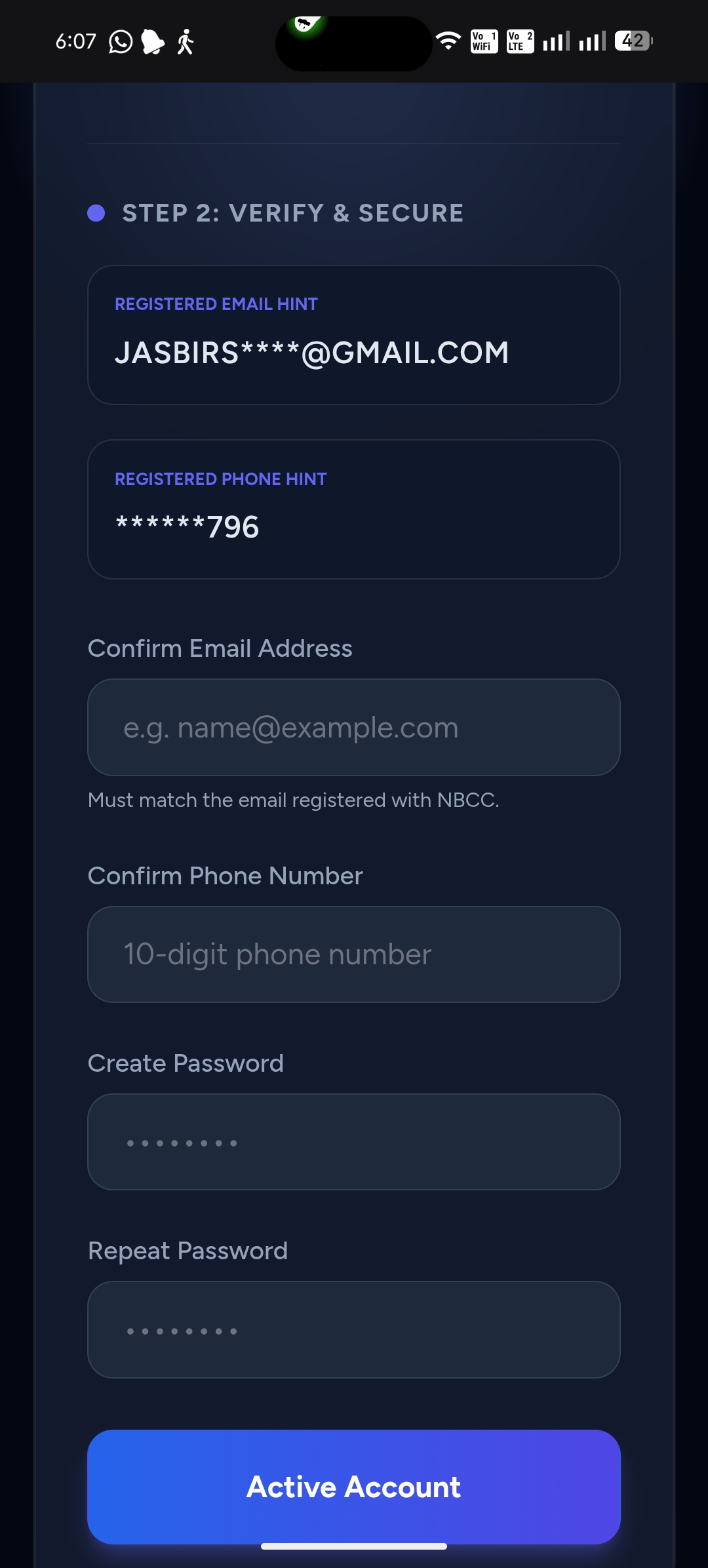
Check the details fetched on the screen. Confirm your registered e-mail and phone number.
Create a password of your choice and click Activate Account.
Installing the NBCC Sewa App
Manage complaints on the go with our Android application.
Download the APK
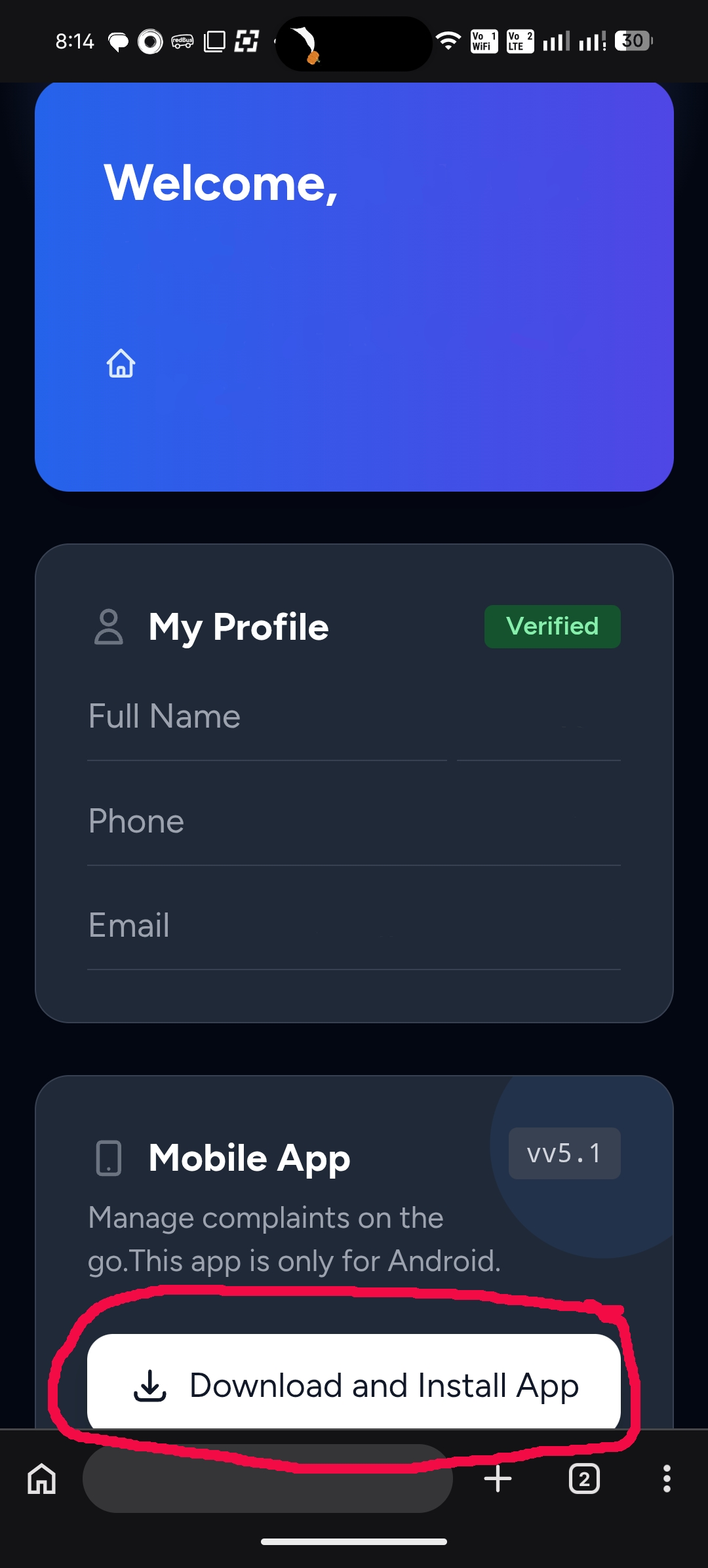
After logging into the web dashboard, scroll down to the Mobile App section and click the Download and Install App button.
Install App
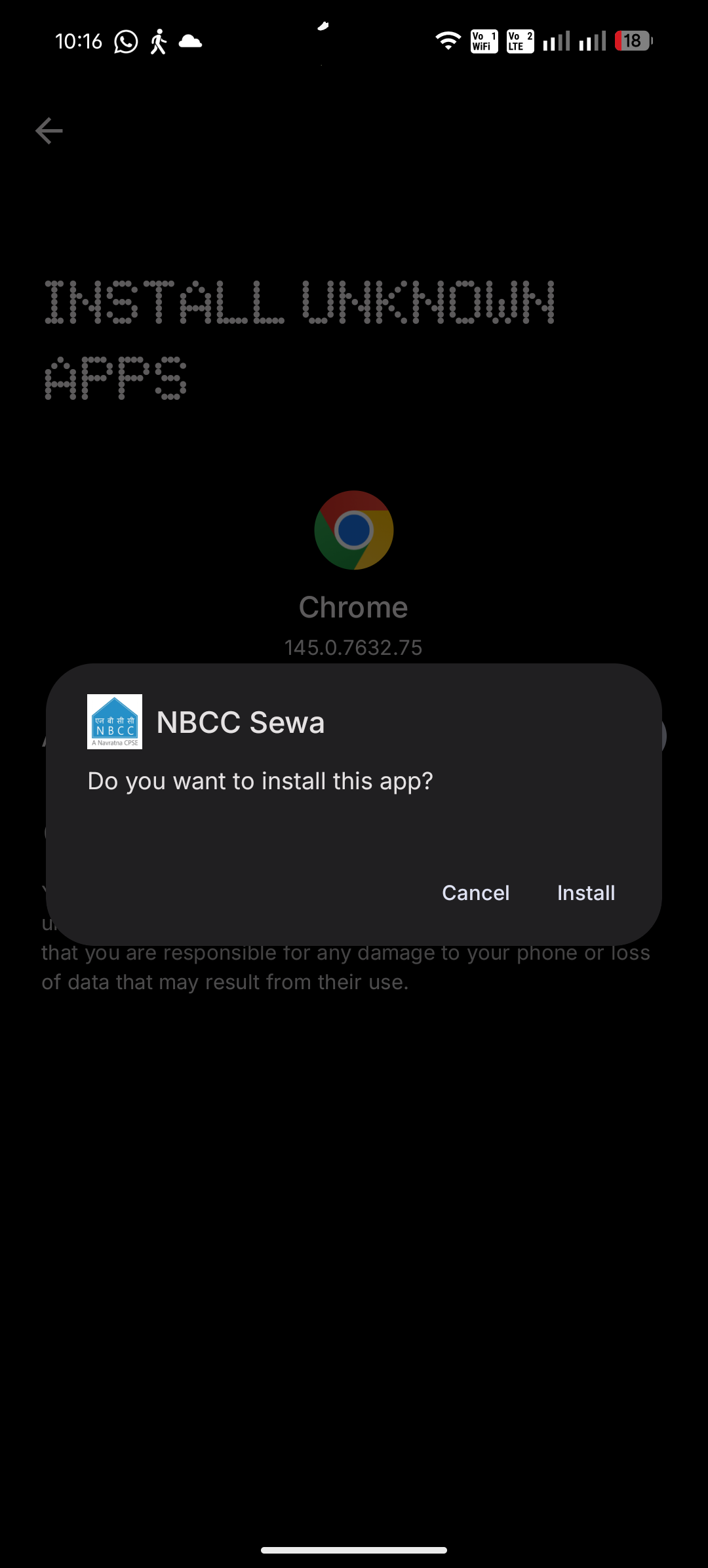
Go to your phone's Downloads folder to run and install the downloaded NBCC Sewa APK file.
How to Log a Complaint
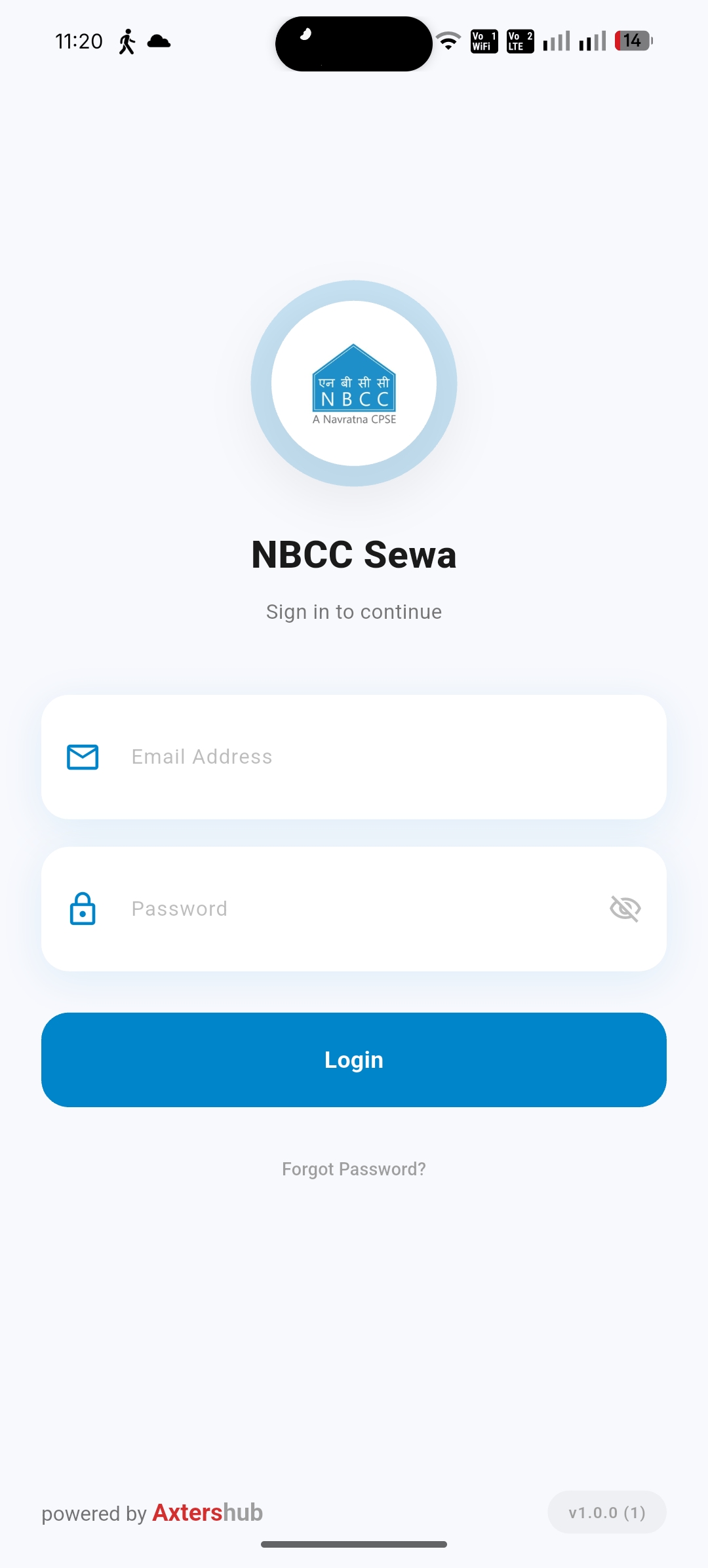
Login & Initiate Request
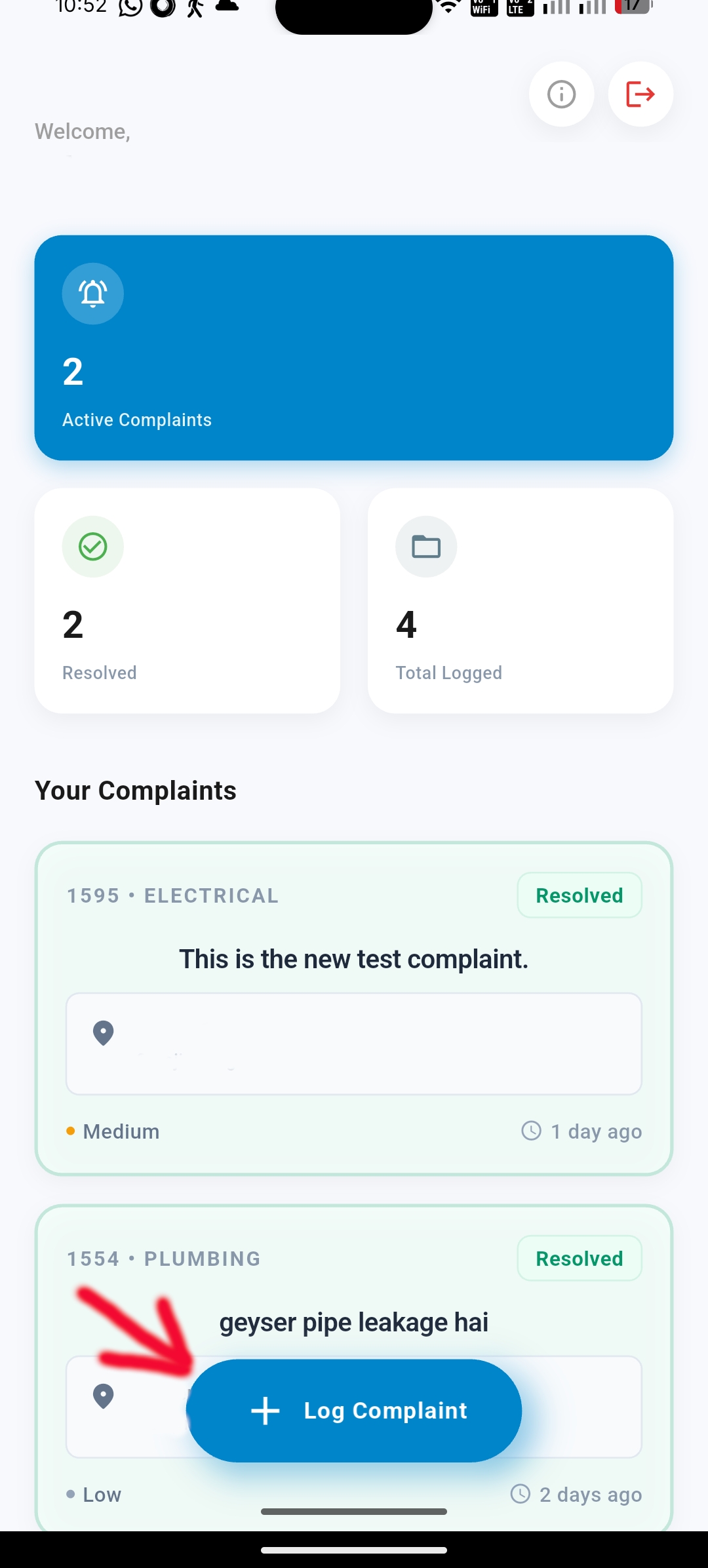
After successfully logging into the mobile application, tap the + Log Complaint button on the main dashboard.
Provide Details & Submit
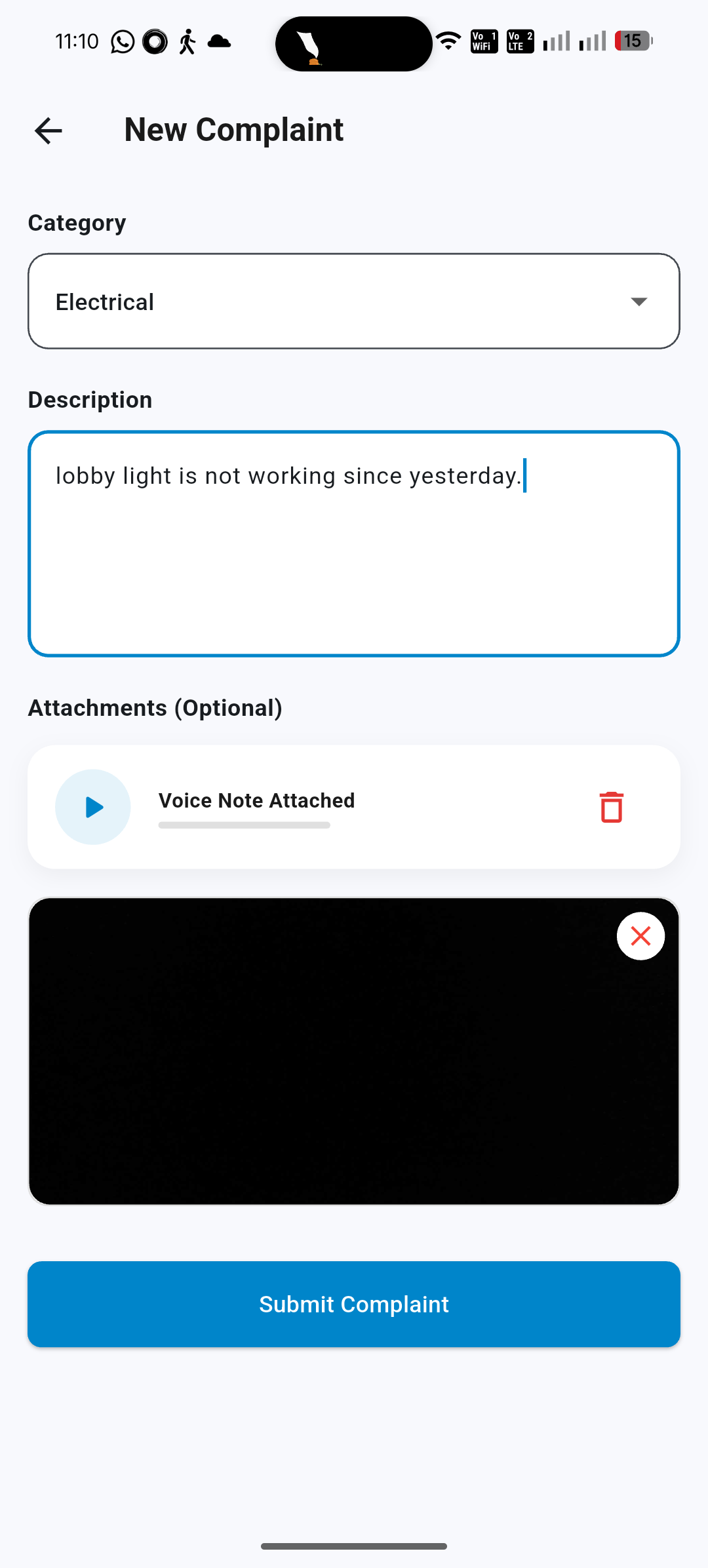
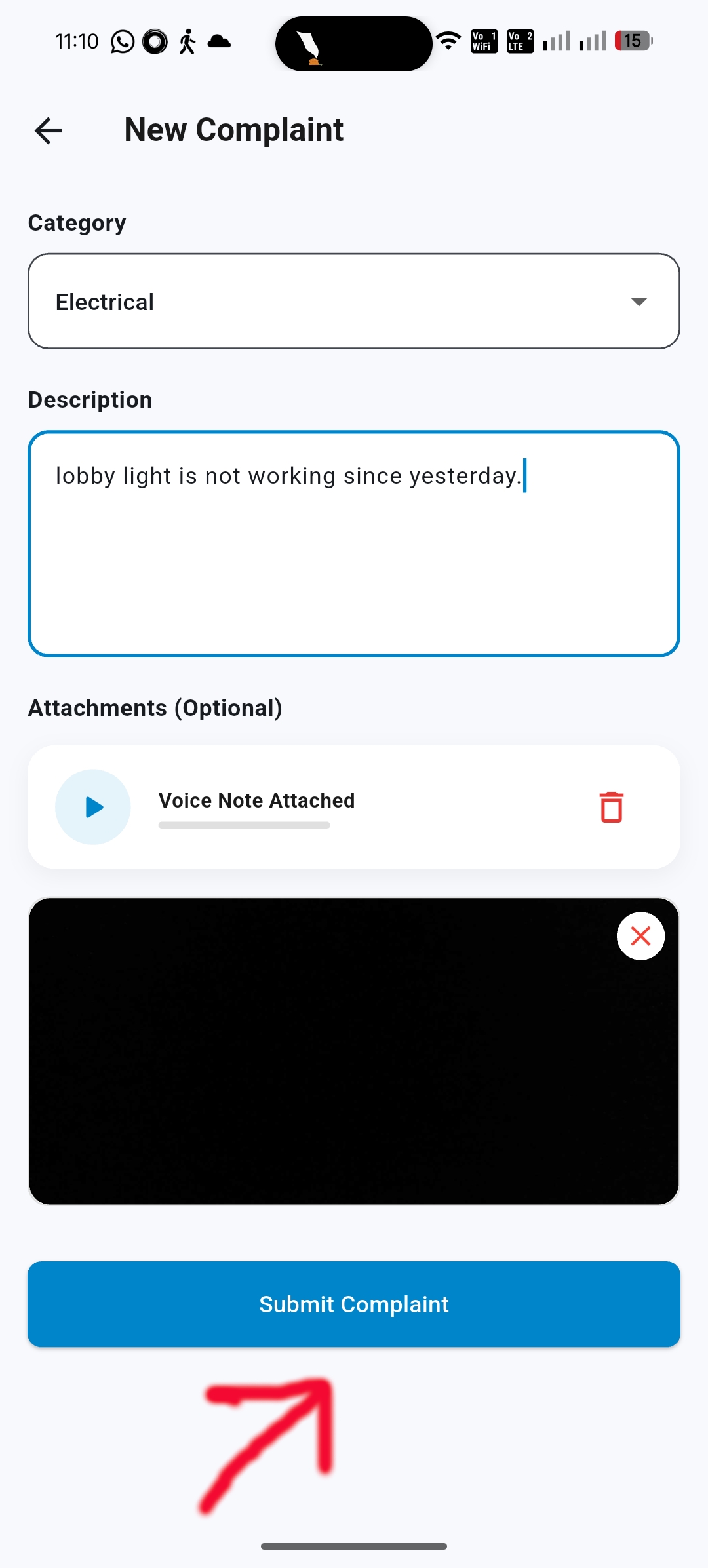
Choose the relevant Category, write a complete description, and tap Submit Complaint.
Pro Tip: You can attach a Voice note or Picture proof to help the maintenance team understand the issue faster.
App Troubleshooting
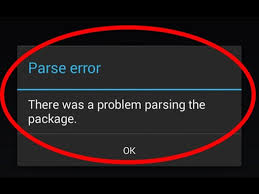
"Parse Error" Window
If your device warns about a problem parsing the package, follow these steps to adjust Play Protect:
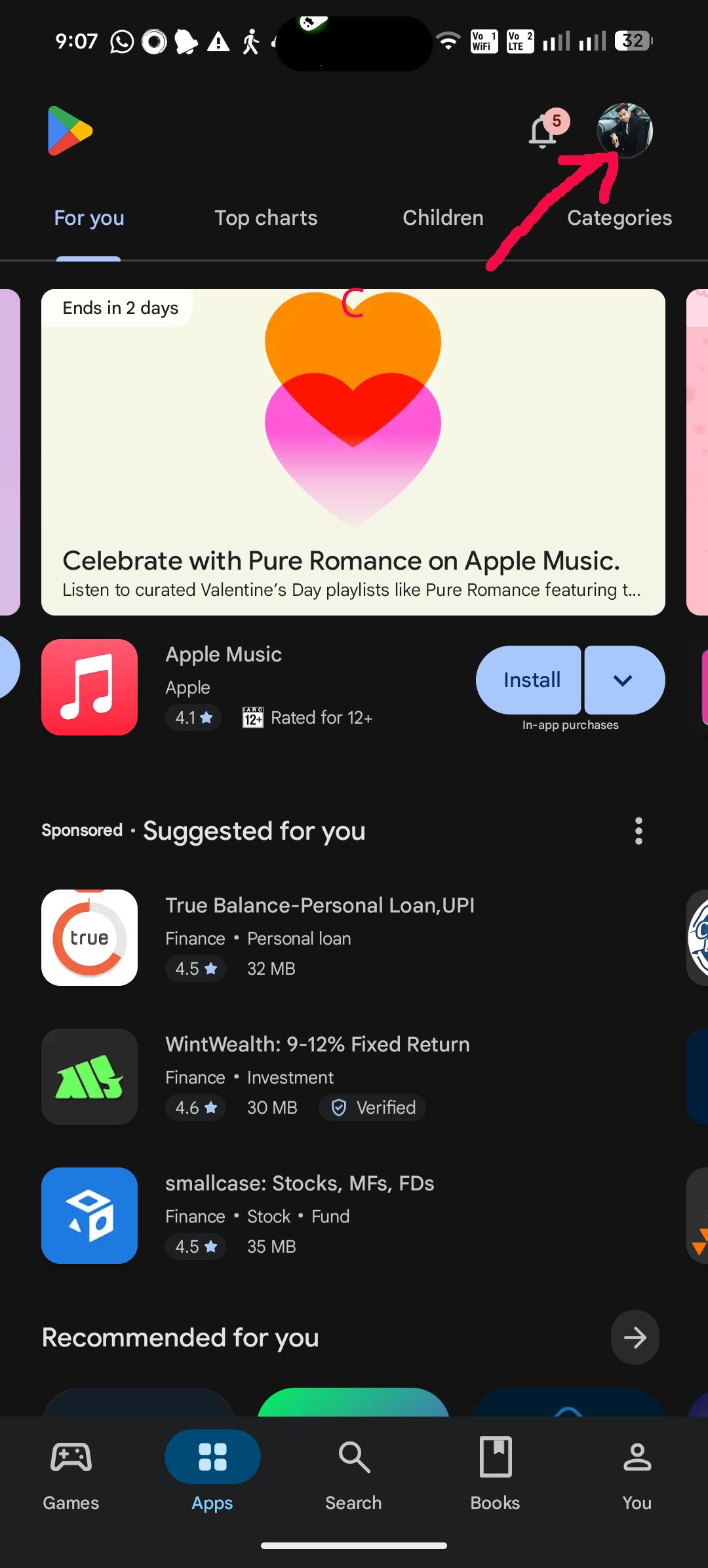
Go to Google Play Store and tap your profile icon.
Select the Play Protect option from the menu.
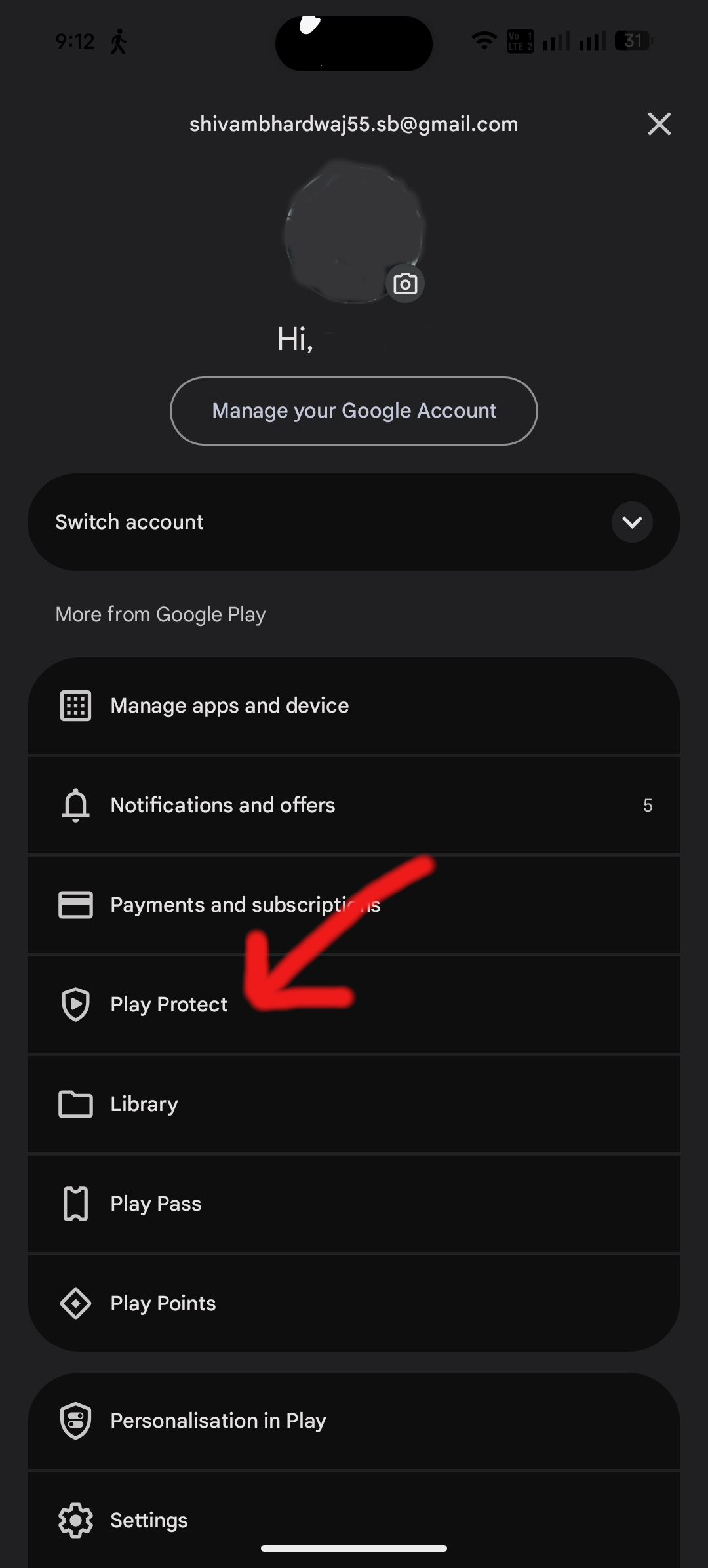
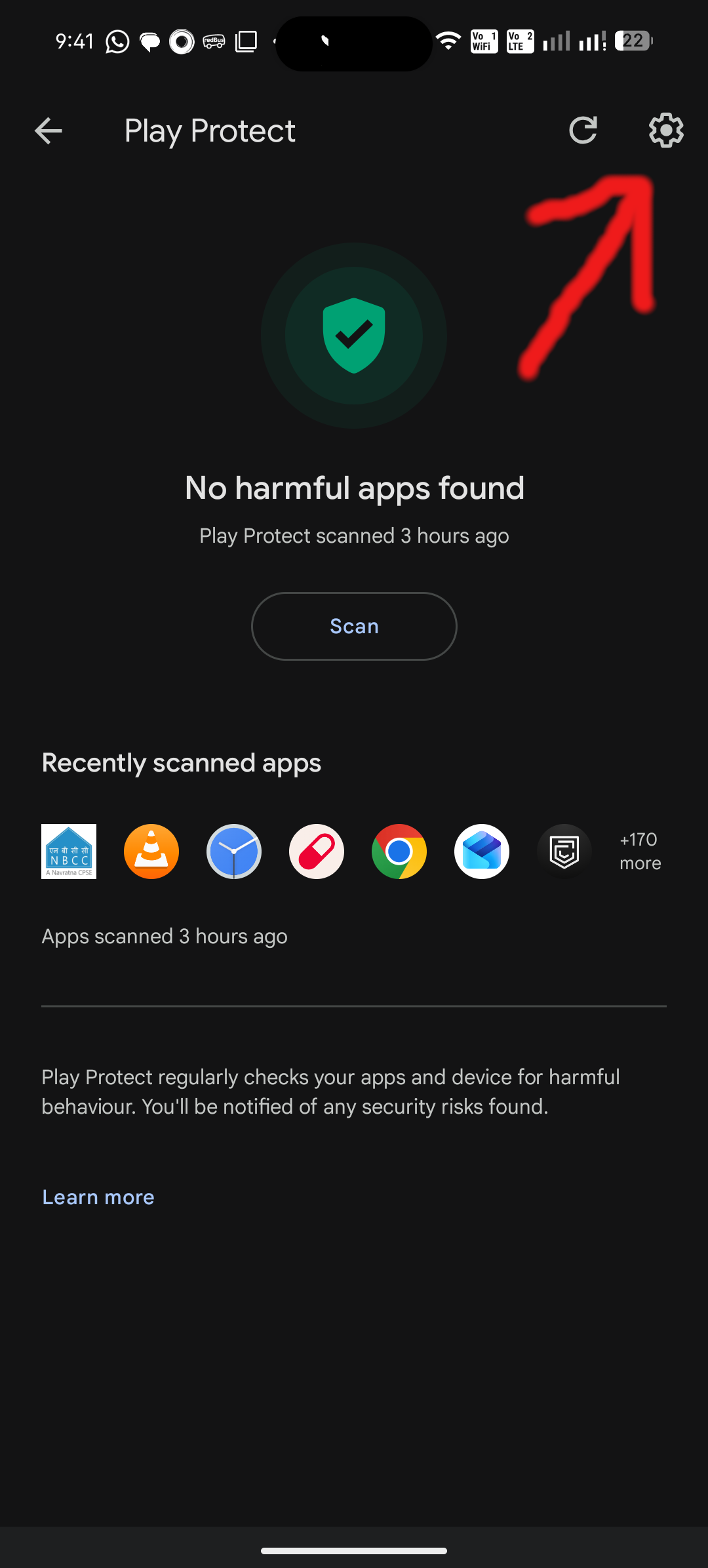
Tap the gear icon on the top right.
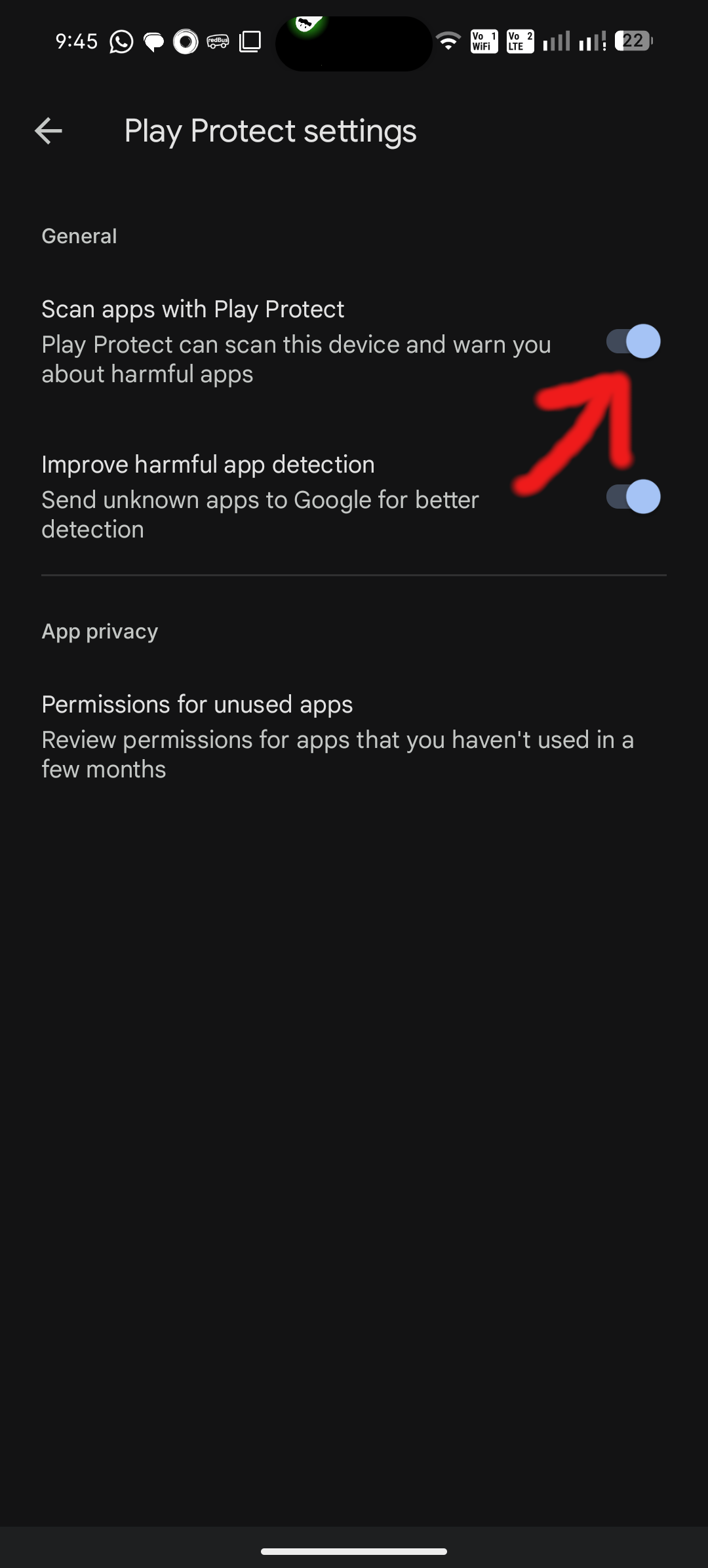
Disable the "Scan apps with Play Protect" toggle.
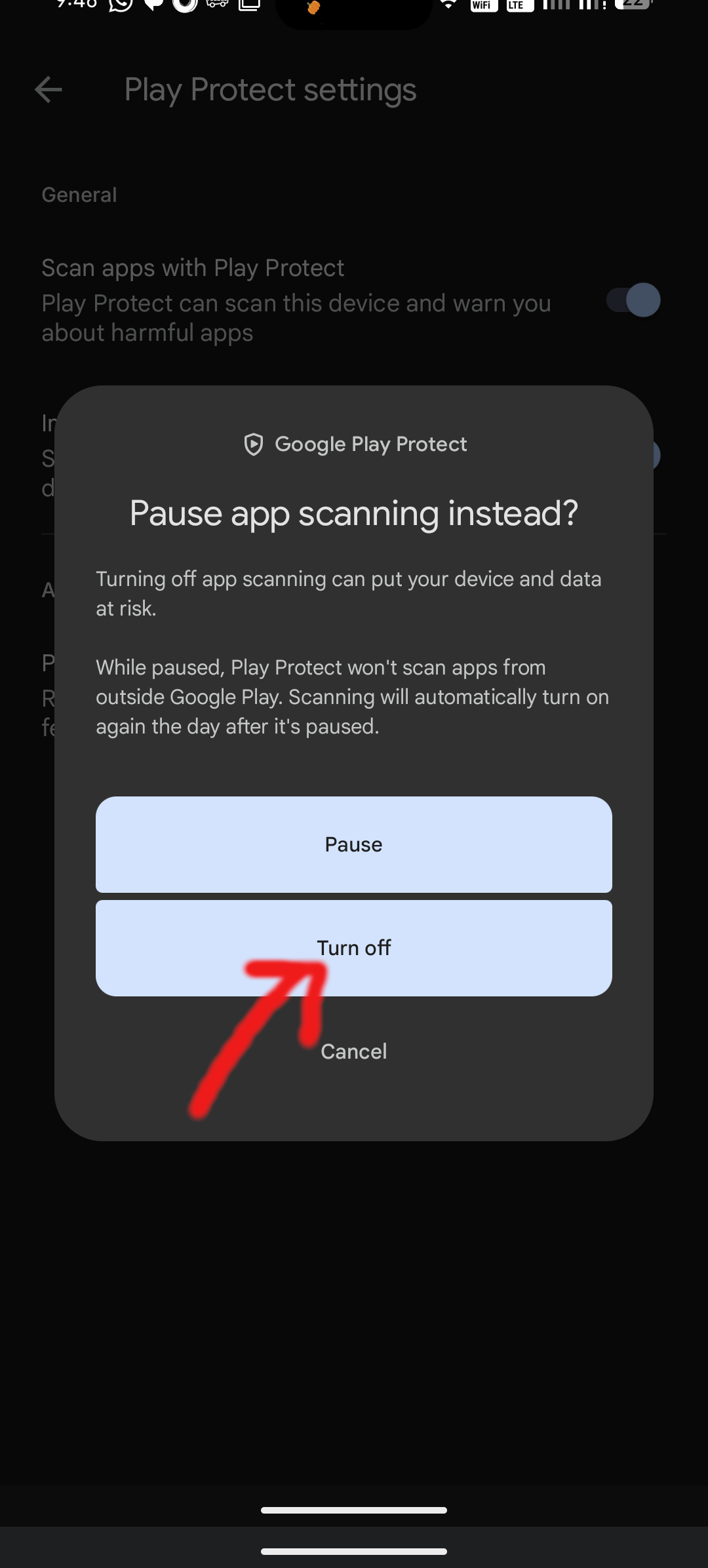
Tap Turn Off on the prompt and reinstall.
"Install Unknown Apps" Warning
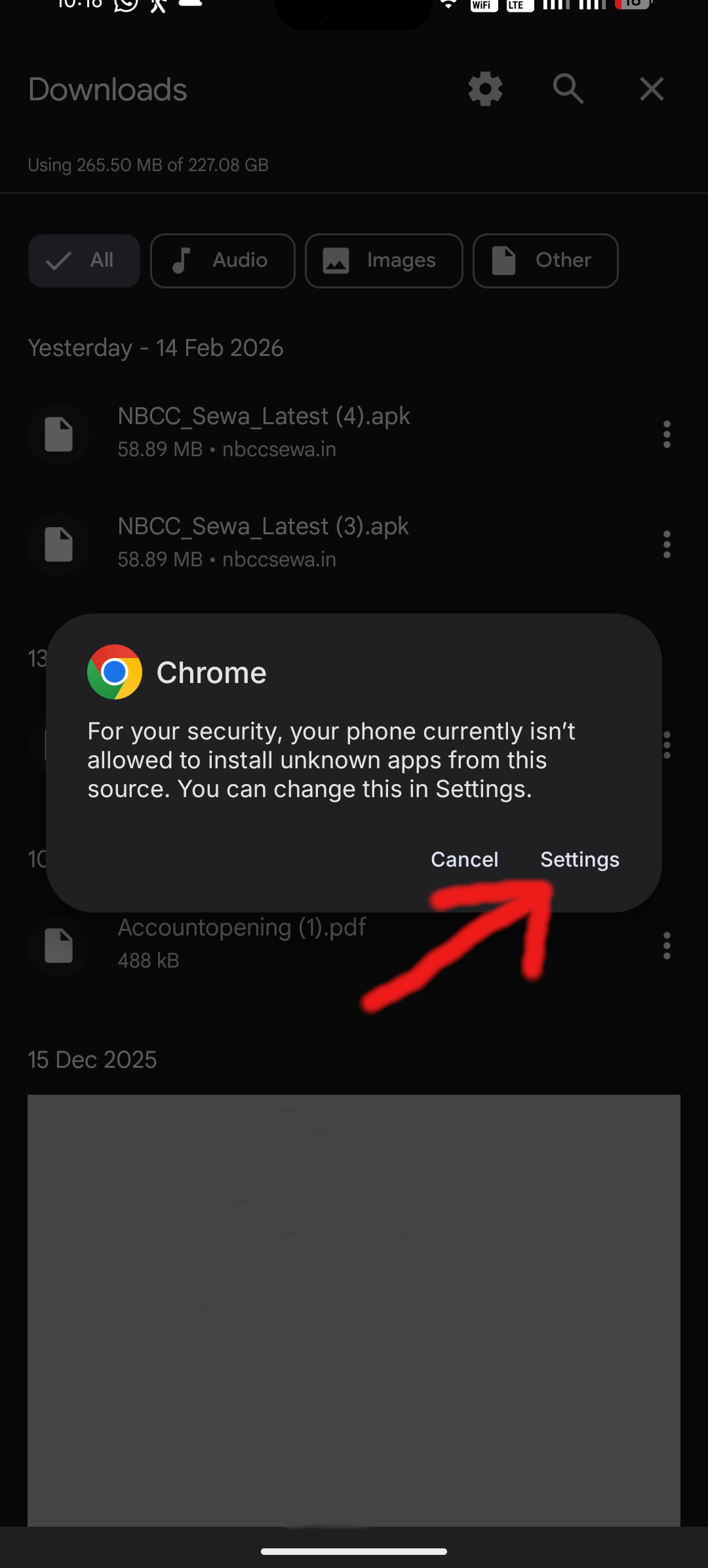
If you see a security dialog block the installation process:

Tap the Settings button on the Dialog Box.
Turn on the toggle to allow from this source.
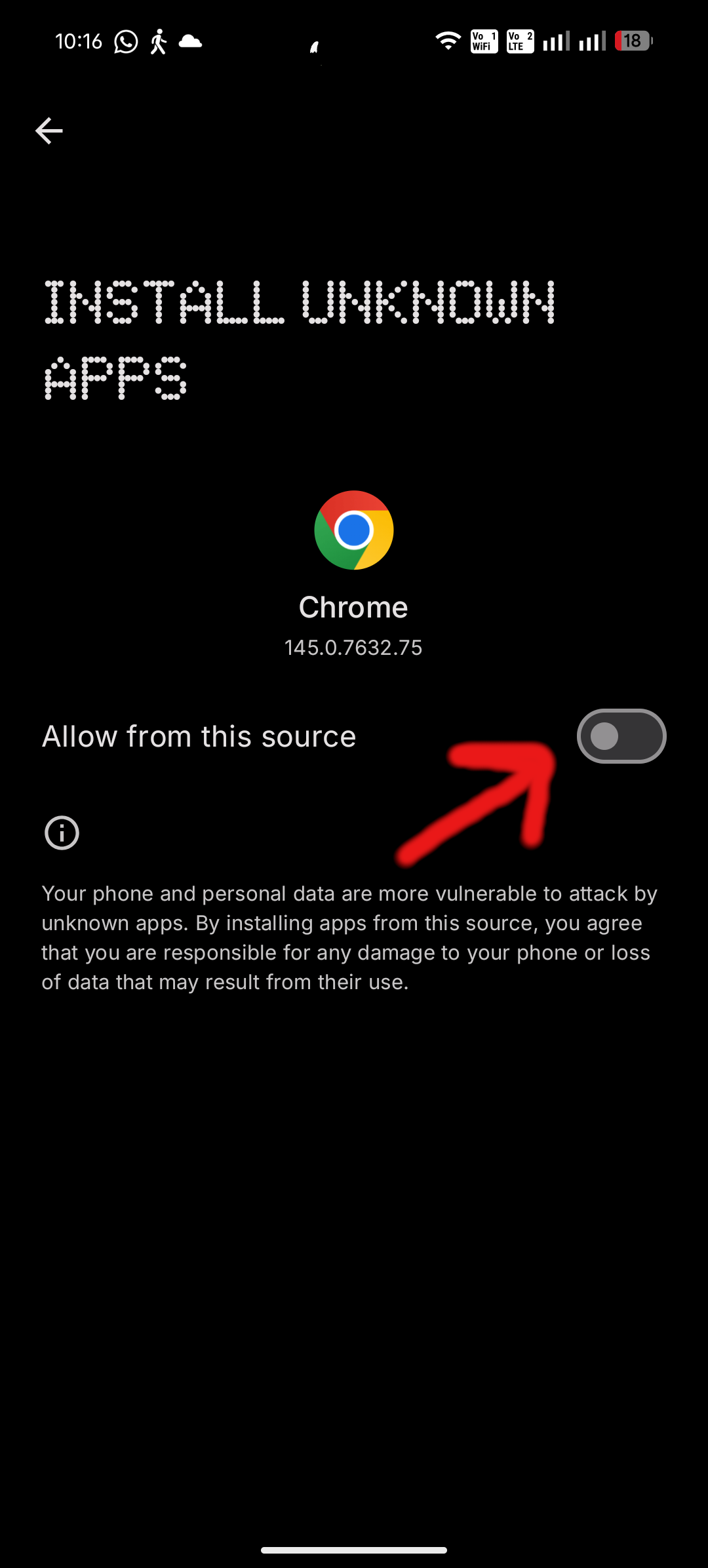
Go back. The prompt will appear. Tap Install.